Obsidian has many community plugins, and one of the best is Terminal plugin. it allow you to attach a terminal inside the obsidian apps just like in VS Code witch you can use to sync your documents to a Git repository (although obsidian has dedicated Git plugin as well).
However, if you installed obsidian via flatpak, the terminal behaves a bit differently. You need to configure the plugin to allow access to the host terminal; otherwise, you will only able to access the sandbox terminal inside the flatpak container.
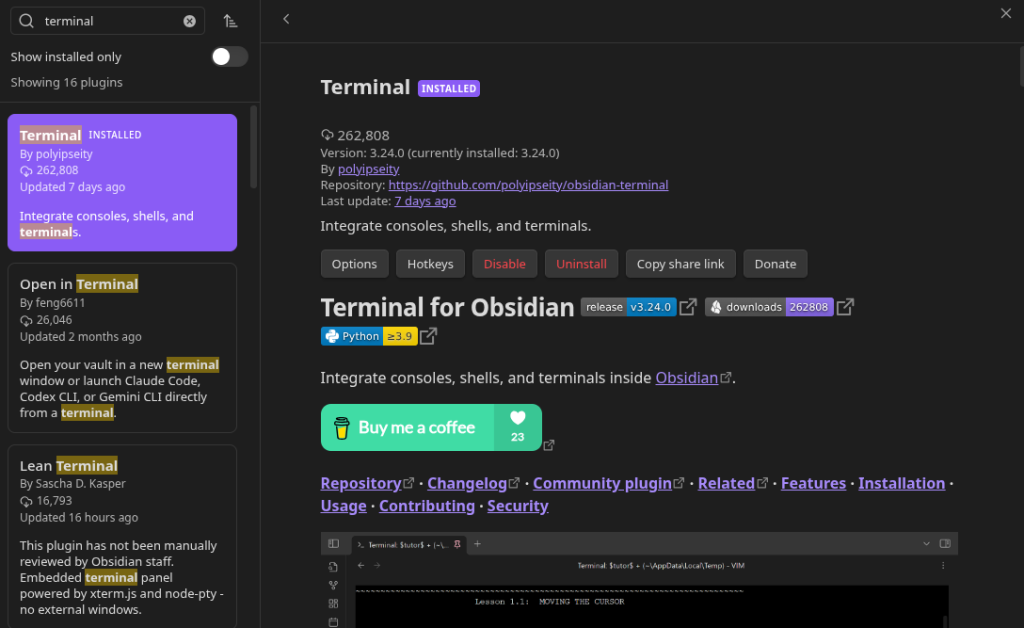
Setup Plugin
First, override permission Obsidian to allow it application to interact with the host.
flatpak override --talk-name=org.freedesktop.Flatpak md.obsidian.ObsidianMake sure the Terminal plugin is installed and go to the plugin settings: Profiles > LinuxIntegratedDefault > Edit > Data > Data. Replace the JSON data with this code:
Bash Shell
{
	"args": ["--host", "--env=TERM=xterm-256color", "/bin/bash"],
	"executable": "flatpak-spawn",
	"followTheme": true,
	"name": "Host Bash Terminal",
	"platforms": {
		"linux": true
	},
	"pythonExecutable": "python3",
	"restoreHistory": false,
	"rightClickAction": "copyPaste",
	"successExitCodes": [
		"0",
		"SIGINT",
		"SIGTERM"
	],
	"terminalOptions": {
		"documentOverride": null
	},
	"type": "integrated",
	"useWin32Conhost": true
}Fish Shell
{
	"args": ["--host", "--env=TERM=xterm-256color", "script", "-qec", "/usr/bin/fish", "/dev/null"],
	"executable": "flatpak-spawn",
	"followTheme": true,
	"name": "Host Fish Terminal",
	"platforms": {
		"linux": true
	},
	"pythonExecutable": "python3",
	"restoreHistory": false,
	"rightClickAction": "copyPaste",
	"successExitCodes": [
		"0",
		"SIGINT",
		"SIGTERM"
	],
	"terminalOptions": {
		"documentOverride": null
	},
	"type": "integrated",
	"useWin32Conhost": true
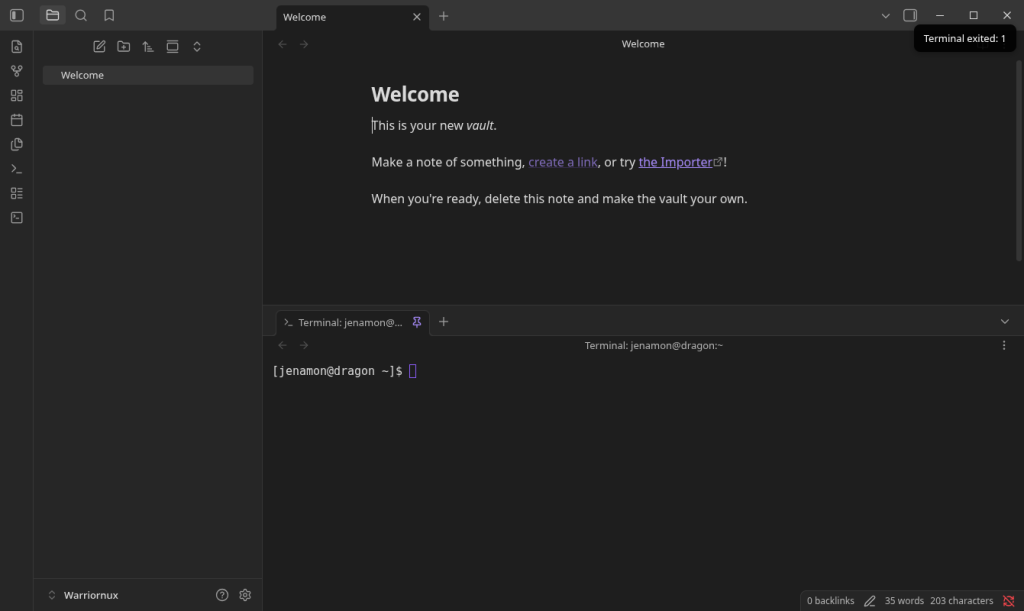
}After replacing the data, close settings menu and cliick the terminal icon on the side of the Obsidian apps. The terminal will show up below your editing menu.
I Hope this helps! thanks for reading 😁