In modern display server like Wayland have special feature is swipe touchpad to show all application and switch workspace easily, but in display server X11 this feature does not exist. So if you still running X11 for your desktop and want to have this feature you must be setup.
My study case is implement on Linux Fedora 41 KDE with X11
Install Touchegg
Touchégg is an app that runs in the background and transform the gestures you make on your touchpad or touchscreen into visible actions in your desktop.
Debian & Ubuntu
sudo add-apt-repository ppa:touchegg/stable
sudo apt update
sudo apt install toucheggRHEL & Fedora
dnf install touchegg
sudo systemctl start touchegg
sudo systemctl enable toucheggConfig Touchegg
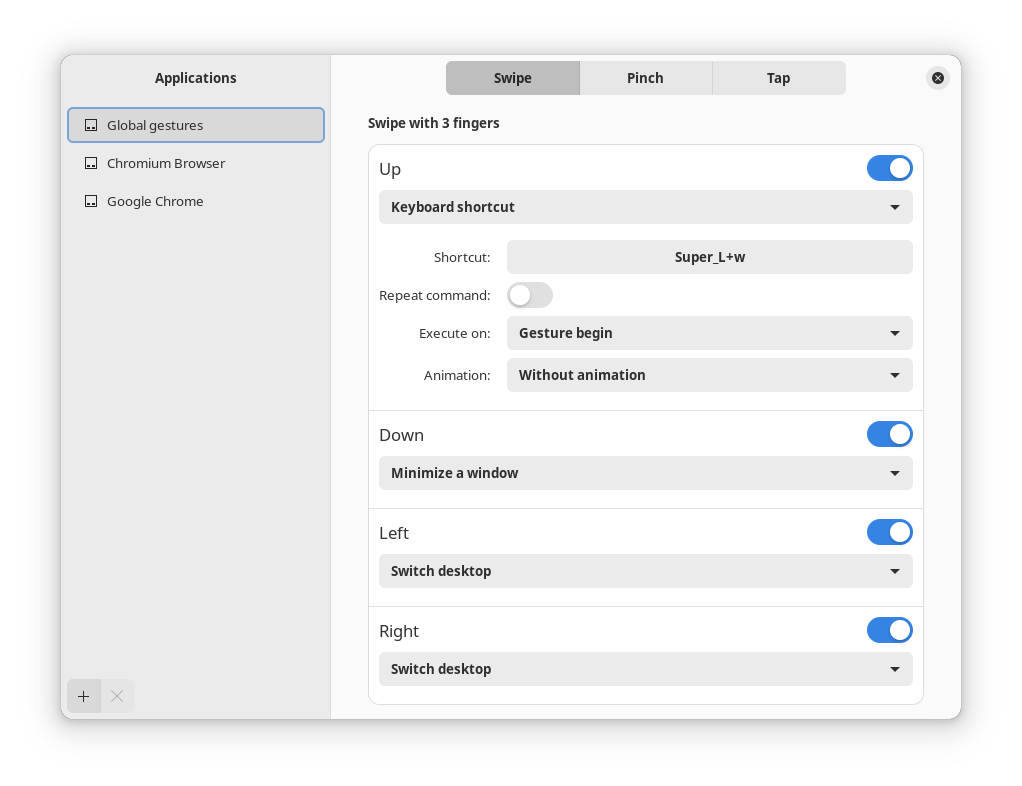
For config touchegg we can use touche apps, you can download flatpak apps from flathub
flatpak install flathub com.github.joseexposito.toucheAfter installed, open touche apps and try to config like this image for your KDE
Mouse Scrolling Gesture (optional)
In Wayland we can switch workspace with combination Super key and scrolling mouse but in X11 i can’t do it, if you want to setup you can try install the package:
sudo dnf install xbindkeys xdotoolCreate file configuration for xbindkeys
nano ~/.xbindkeysrcAdd configuration for combination Super_L with scroll mouse :
# Scroll up with Super key to move workspace left
"xdotool key Ctrl+Super_L+Left"
    m:0x40 + b:4

# Scroll down with Super key to move workspace right
"xdotool key Ctrl+Super_L+Right"
m:0x40 + b:5Notes :
m:0x40adalah mask untuk tombol Super (Windows Key)b:4adalah aksi scroll up pada mouseb:5adalah aksi scroll down pada mouse.
Run the xbindkeys to try :
xbindkeysIf configuration working, you can add the xbindkeys to autostart.
Reference :
- https://github.com/JoseExposito/touche?tab=readme-ov-file
- https://github.com/JoseExposito/touchegg
- ChatGPT